Proton Tech Lab

Web Design

The Hidden Costs of Website Downtime for Your Business

The Hidden Costs of Website Downtime for Your Business Your website goes down. Maybe for an hour, maybe for a day. It happens to everyone eventually. But do you know what that downtime actually costs your business? Beyond the obvious lost sales, website outages create ripple effects that damage your business long after the site comes back online. At Proton Tech Lab, we help businesses minimize downtime through reliable hosting and proactive maintenance. Let’s explore the true costs of website outages and how to prevent them. Direct Revenue Loss The most obvious cost is lost sales. According to Gartner, the average cost of IT downtime is around $5,600 per minute for larger enterprises. For small businesses, the numbers are smaller but proportionally just as painful. Calculate your hourly revenue and imagine losing it entirely during an outage. E-commerce sites lose every sale that would have occurred. Service businesses lose inquiry forms and appointment bookings. Every minute offline is money gone forever. Lost Customer Trust When visitors encounter an unavailable website, they form negative impressions. Is this business reliable? Are they still operating? Can I trust them with my order? These doubts linger even after your site returns. First-time visitors who hit downtime rarely return. They simply move to competitors who are online and ready to serve them. You’ll never know how many potential customers you lost because they found your site down. Search Engine Ranking Damage Google’s crawlers visit your site regularly. If they encounter errors during these visits, your search rankings can suffer. Frequent or extended downtime signals unreliability, which search engines factor into rankings. Even after your site recovers, regaining lost ranking positions takes time. The SEO damage from significant downtime can affect your visibility for weeks or months afterward. Wasted Marketing Spend Running paid advertising during an outage burns money with zero return. Every click from Google Ads, Facebook campaigns, or other paid channels leads to an error page. You pay for traffic that can’t convert. Email campaigns sent during downtime drive subscribers to broken pages, damaging both the campaign’s effectiveness and subscriber trust. Marketing efforts require a functioning website to deliver results. Productivity Losses Website downtime often affects internal operations too. Staff can’t access tools, information, or systems they need. Customer service can’t look up orders. Sales can’t demonstrate products. Operations slow across the organization. Then there’s the scramble to fix the problem. Technical staff drop everything to restore the site. Leadership gets involved. Communication overhead multiplies. The disruption extends far beyond the website itself. Reputation and Brand Damage Social media amplifies outage awareness. Frustrated customers tweet complaints. Reviews mention reliability problems. News spreads faster than you can fix the underlying issue. For some businesses, a major outage becomes part of their public narrative. Competitors may even capitalize on your downtime, positioning themselves as more reliable alternatives. Preventing Website Downtime Most downtime is preventable with proper precautions. Quality Hosting: Choose hosts with strong uptime records, redundant infrastructure, and quick support response times. Regular Maintenance: Keep software updated, monitor performance, and address issues before they cause failures. Monitoring Systems: Use uptime monitoring to detect outages immediately, minimizing response time. Backup Systems: Maintain current backups so recovery is fast if something goes wrong. Security Measures: Many outages result from security breaches. Strong security prevents these incidents. Having a Response Plan When outages occur, response speed matters. Know who to contact, what steps to take, and how to communicate with customers. A clear plan reduces downtime duration and minimizes damage. Keep Your Website Running Website downtime costs more than most businesses realize. Lost revenue, damaged trust, hurt rankings, and wasted marketing all add up. Investing in reliability prevents these costs and keeps your business running smoothly. Worried about your website’s reliability? At Proton Tech Lab, we provide hosting and maintenance that minimizes downtime risk. Contact us today to discuss keeping your website running reliably. Don’t let downtime cost your business!

GoHighLevel

Why Your Website Needs an SSL Certificate in 2025

Why Your Website Needs an SSL Certificate in 2025 That little padlock in your browser’s address bar means more than you might think. It signals that a website uses SSL encryption to protect data traveling between visitors and the server. In 2025, SSL isn’t optional; it’s a fundamental requirement for any business website. At Proton Tech Lab, we ensure every website we build includes proper SSL implementation. Let’s explore what SSL certificates do, why they matter, and how to ensure your website is properly secured. What Is an SSL Certificate? SSL stands for Secure Sockets Layer, a security protocol that encrypts data transmitted between a user’s browser and a website’s server. According to Cloudflare, SSL creates a secure tunnel that prevents hackers from intercepting sensitive information like passwords, credit card numbers, and personal data. When a website has SSL, its URL begins with “https” instead of “http,” and browsers display a padlock icon. This visual indicator tells visitors their connection is secure. Protecting Your Visitors Every time visitors enter information on your website, that data travels across the internet. Without encryption, this data is vulnerable to interception. Hackers can capture login credentials, payment information, contact form submissions, and personal details. SSL encryption scrambles this data so that even if intercepted, it’s unreadable without the decryption key. You’re protecting your customers every time they interact with your site. Browser Warnings Scare Visitors Away Modern browsers actively warn users about unsecured websites. Chrome, Firefox, Safari, and Edge all display prominent warnings when visitors try to access sites without SSL. These warnings tell visitors the site is “Not Secure” or even block access entirely. Most visitors won’t proceed past these warnings. They’ll click away to a competitor who does have SSL. An unsecured site loses traffic before visitors even see your content. SSL Impacts Search Rankings Google has used HTTPS as a ranking signal since 2014, and its importance has only grown. Secure sites receive ranking preference over unsecured equivalents. In competitive search results, SSL can be the difference between first page and second page. Beyond direct ranking benefits, SSL affects user behavior metrics that influence SEO. Higher bounce rates from security warnings and lower engagement on unsecured sites indirectly hurt rankings too. Building Customer Trust The padlock icon has become a trust symbol that customers recognize. Seeing it reassures visitors that your business takes security seriously. This trust matters especially for e-commerce, where customers must feel safe entering payment information. Even if you don’t sell online, SSL signals professionalism. A business that doesn’t secure its website may seem careless or behind the times. First impressions matter, and security is part of that impression. Types of SSL Certificates SSL certificates come in different validation levels. Domain Validation (DV): Basic certificates that verify domain ownership. Fast to obtain and sufficient for most small business websites. Organization Validation (OV): Certificates that verify the organization behind the website. Provides more assurance but takes longer to obtain. Extended Validation (EV): The highest level of validation with thorough verification. Traditionally showed the company name in the browser bar, though this display has changed in most browsers. Getting an SSL Certificate Many web hosts now include free SSL certificates through services like Let’s Encrypt. These free certificates provide the same encryption as paid options and are perfectly adequate for most small businesses. Paid certificates from providers like DigiCert or Comodo offer additional features, warranties, and support. For most small business websites, free certificates work perfectly well. Implementing SSL Correctly Installing an SSL certificate is just the first step. Your entire site must load over HTTPS. Mixed content warnings occur when secure pages load unsecured elements like images or scripts. All internal links should use HTTPS. Redirects should send HTTP traffic to HTTPS automatically. Improper implementation can create security warnings despite having a certificate. Testing and verification ensure your SSL works correctly throughout your site. Maintaining Your Certificate SSL certificates expire and must be renewed. Most certificates last one to two years. Let your certificate expire, and browsers will display security warnings again. Set reminders or use auto-renewal to prevent lapses. Secure Your Website Today SSL certificates are no longer optional for any business website. They protect your visitors, improve search rankings, and build the trust necessary for online success. If your site isn’t secure yet, fixing this should be a top priority. Need help securing your website with SSL? At Proton Tech Lab, we handle SSL implementation and ensure your site is properly secured. Contact us today to discuss your website security. Let’s protect your visitors and your business!

GoHighLevel

Choosing the Right Website Hosting for Your Small Business

Choosing the Right Website Hosting for Your Small Business Your website needs a home on the internet, and that home is web hosting. The hosting you choose affects how fast your site loads, how often it’s available, and how secure it remains. For small businesses, hosting decisions can feel overwhelming with countless options and technical jargon. At Proton Tech Lab, we help small businesses navigate hosting decisions. Let’s break down web hosting basics and what matters most for your business website. What Is Web Hosting? Web hosting is a service that stores your website files on servers connected to the internet. When someone types your domain name, their browser connects to these servers and loads your site. According to Cloudflare, hosting quality directly impacts website speed, reliability, and security. Think of hosting like renting space in a building. Shared hosting is like an apartment; you share resources with neighbors. Dedicated hosting is like owning the whole building. Different businesses need different arrangements. Types of Web Hosting Understanding hosting types helps you choose what fits your needs and budget. Shared Hosting: Your website shares server resources with many other sites. It’s the most affordable option but offers limited performance and control. Best for small sites with modest traffic. VPS Hosting: Virtual Private Server hosting gives you dedicated portions of a server. More resources and control than shared hosting at moderate cost. Good for growing businesses. Dedicated Hosting: An entire server exclusively for your website. Maximum performance, control, and security but significantly higher cost. Suited for large sites with heavy traffic. Cloud Hosting: Your site runs across multiple connected servers. Highly scalable and reliable since your site isn’t dependent on single hardware. Pricing often scales with usage. Managed Hosting: The hosting provider handles technical management like updates, security, and optimization. Higher cost but less technical burden on you. Speed and Performance Hosting significantly affects how fast your website loads. Slow sites frustrate visitors and hurt search rankings. Look for hosts that offer solid state drives, adequate RAM, and modern server technology. Server location matters too. Hosts with servers geographically close to your audience deliver content faster. Some hosts offer content delivery networks that cache your site across global locations. Uptime and Reliability Uptime measures how often your site is accessible. Look for hosts guaranteeing 99.9% uptime or better. Even small percentages matter: 99% uptime means your site could be down over three days per year. Check reviews for actual uptime performance, not just promises. Some hosts offer uptime guarantees with credits if they fall short, which indicates confidence in their infrastructure. Security Features Good hosting includes security fundamentals: free SSL certificates, firewalls, malware scanning, and regular backups. These features protect your site and customer data from threats. Ask how hosts handle security incidents. Do they monitor for intrusions? How quickly do they respond to threats? What backup and recovery options exist? Security should be proactive, not reactive. Customer Support When something goes wrong, you need help fast. Look for hosts offering 24/7 support through multiple channels: phone, chat, and email. Test response times before committing by asking pre-sales questions. Quality matters more than availability. Support staff should be knowledgeable and able to actually resolve issues, not just read scripts. Check reviews specifically mentioning support experiences. Scalability Your hosting needs may grow as your business grows. Choose hosts that make upgrading easy. Can you move from shared to VPS without migrating to a new provider? What happens if you suddenly get traffic spikes? Starting with more hosting than you need wastes money. Starting with too little creates problems. Find hosts that let you scale smoothly as needs change. Pricing Considerations Hosting prices vary dramatically. Cheap shared hosting starts under five dollars monthly; dedicated servers cost hundreds. Be wary of extremely low prices that sacrifice performance or support. Watch for renewal pricing. Many hosts offer low introductory rates that increase significantly upon renewal. Understand the full cost before committing to long-term contracts. What Small Businesses Typically Need Most small business websites do well with quality shared hosting or entry-level VPS. You need reliable uptime, decent speed, good security, and responsive support. Don’t overpay for resources you won’t use. If your site runs WordPress or similar platforms, consider managed WordPress hosting. The optimization and support specifically for your platform often justifies the premium. Host Your Success The right hosting provides a solid foundation for your online presence. By understanding your needs and evaluating options carefully, you can choose hosting that supports your business goals without breaking your budget. Need help choosing or setting up hosting? At Proton Tech Lab, we guide small businesses through hosting decisions and handle technical setup. Contact us today to discuss your hosting needs. We’ll help you find the perfect home for your website!

GoHighLevel

Creating Contact Forms That Actually Get Responses

Creating Contact Forms That Actually Get Responses Your contact form is where potential customers take action. But too many forms create friction that drives visitors away. Long forms, confusing fields, and poor design turn eager leads into lost opportunities. The difference between a form that converts and one that doesn’t often comes down to simple design choices. At Proton Tech Lab, we design contact forms that encourage visitors to reach out. Let’s explore best practices for creating forms that actually get responses. Every Field Costs You Conversions Each field you add reduces the likelihood someone completes your form. According to HubSpot, reducing form fields from four to three can increase conversions by up to 50%. Every additional field gives visitors another reason to abandon the form. Ask yourself: do you truly need every field? Will you actually use the information collected? If a field isn’t essential for following up effectively, remove it. You can gather additional details later in the conversation. Essential Fields Only For most contact forms, you need name, email, and a message field. That’s it. Phone numbers, company names, budgets, and detailed questionnaires can wait. The goal is starting a conversation, not conducting an interview. If you must collect additional information, mark non-essential fields as optional. Seeing “optional” reduces the perceived effort required to complete the form. Write Clear, Helpful Labels Field labels should tell visitors exactly what to enter. “Name” is clearer than “Full Legal Name.” “Email” beats “Electronic Mail Address.” Simple, familiar language reduces cognitive load. Place labels above fields rather than inside them as placeholder text. Placeholder text disappears when users start typing, forcing them to remember what the field requested. Persistent labels prevent confusion. Make Fields Easy to Complete Use appropriate field types for different inputs. Email fields should use email input type so mobile devices show the right keyboard. Phone fields should trigger numeric keyboards. Text areas for messages should be large enough to see what’s being typed. Enable autocomplete so browsers can fill in common information like names and email addresses. This small convenience significantly speeds form completion. Design for Mobile First Many visitors will complete your form on phones. Touch targets need adequate size for finger taps. Fields should stack vertically for easy scrolling. Keyboards shouldn’t cover the field being typed in. Test your form on actual mobile devices, not just browser simulations. What feels easy on desktop can become frustrating on a small screen. Create Compelling Submit Buttons “Submit” is boring and vague. Buttons with specific, action-oriented text perform better. “Send Message,” “Get Your Quote,” or “Start the Conversation” tell visitors what happens next and feel more engaging. Make buttons visually prominent. Use contrasting colors that stand out from the page. Size buttons large enough to be obvious and easy to tap on mobile. Handle Errors Gracefully When validation fails, tell users exactly what went wrong and how to fix it. “Please enter a valid email address” helps more than just highlighting the field red. Show errors immediately next to the relevant field, not in a list at the top of the form. Don’t clear the entire form when errors occur. Losing everything they’ve typed frustrates users and often causes them to abandon rather than start over. Confirm Successful Submission After someone submits, confirm their message was received. A thank you page or message reassures visitors that their submission worked. Include information about what happens next and when they can expect a response. Consider sending an automatic email confirmation. This provides a record for the visitor and another touchpoint for your brand. Build Trust Around the Form Visitors hesitate to share information with businesses they don’t trust. Place trust signals near your form: privacy assurances, testimonials, or security badges. A brief note about how you’ll use their information can reduce anxiety. Never require more information than necessary for the stated purpose. Asking for phone numbers on a newsletter signup feels invasive and reduces trust. Test and Improve Monitor form analytics. How many people start but don’t complete? Where do they abandon? Test different versions to see what improves completion rates. Even small changes can yield significant results. Start More Conversations Well-designed contact forms remove barriers between interested visitors and your business. By keeping forms simple, clear, and user-friendly, you’ll turn more visitors into leads and more leads into customers. Need help improving your contact forms? At Proton Tech Lab, we design forms that encourage visitors to reach out. Contact us today to discuss your website’s conversion optimization. Let’s turn more visitors into conversations!

GoHighLevel

Simple Navigation Tips That Keep Visitors on Your Website Longer

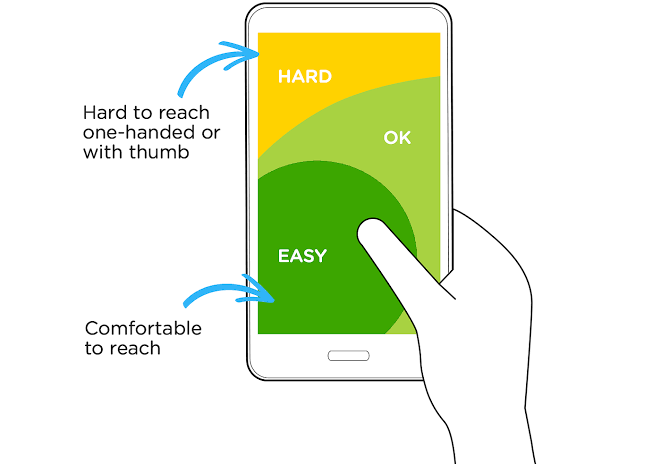
Simple Navigation Tips That Keep Visitors on Your Website Longer Visitors who can’t find what they’re looking for leave. It’s that simple. Your website might have amazing content and products, but if navigation confuses people, they’ll click away to a competitor who makes things easier. Good navigation is invisible; bad navigation is the only thing people notice. At Proton Tech Lab, we design intuitive navigation systems that guide visitors effortlessly. Let’s explore how to create navigation that keeps people on your site longer and helps them find exactly what they need. Why Navigation Matters So Much Navigation is how visitors explore your website. According to HubSpot, 76% of consumers say the most important factor in website design is ease of finding what they want. Poor navigation increases bounce rates, reduces conversions, and frustrates potential customers. Every click required to find information increases the chance someone gives up. Simple, clear navigation removes friction between visitors and their goals, whether that’s making a purchase, finding information, or contacting you. Keep Your Main Menu Simple Less is more in navigation design. Limit your main menu to seven items or fewer. Human short-term memory handles about seven items comfortably; more than that overwhelms visitors and makes decisions harder. Each menu item should represent a major category that visitors actually seek. Remove items that serve internal organizational needs rather than user needs. If something rarely gets clicked, it probably doesn’t belong in primary navigation. Use Clear, Descriptive Labels Navigation labels should tell visitors exactly what they’ll find. Avoid clever or creative labels that sacrifice clarity. “Services” beats “What We Do.” “Contact” beats “Get In Touch.” “Shop” beats “Explore Our Collection.” Use language your customers use, not internal jargon. If you sell software, your customers might search for “Pricing” while you internally call it “Plans and Packages.” Match user expectations in your labels. Follow Established Patterns Users expect certain navigation conventions. The logo goes in the top left and links to the homepage. Main navigation sits horizontally across the top or vertically on the left. Contact information appears in the header or footer. Breaking conventions forces visitors to relearn how to use your site. While creativity matters in design, navigation benefits from predictability. Save innovation for areas where it enhances rather than confuses. Make Navigation Visible Navigation should be immediately visible without scrolling on every page. Sticky headers that remain visible as users scroll ensure navigation is always accessible. Never hide primary navigation behind icons on desktop; hamburger menus work on mobile but frustrate desktop users. Ensure adequate contrast between navigation elements and background. Links should be obviously clickable. Current page indicators help users understand where they are within your site structure. Organize Dropdown Menus Thoughtfully If you need dropdowns, keep them organized and scannable. Group related items together. Use visual hierarchy to distinguish categories from individual pages. Limit dropdown depth; menus within menus within menus frustrate users. Consider mega menus for sites with extensive content. Mega menus display all options at once in organized columns, making complex structures easier to scan than traditional nested dropdowns. Include Search Functionality Some visitors prefer searching to browsing. A visible search bar gives them an immediate path to what they want. Place search prominently, typically in the header area where users expect it. Ensure your search actually works well. Poor search results frustrate users more than no search at all. Consider search suggestions, filters, and error tolerance for misspellings. Don’t Forget Footer Navigation Footer navigation serves users who scroll to the bottom seeking more options. Include links to important pages that don’t fit in primary navigation: privacy policy, terms of service, sitemap, and secondary content areas. Footers also provide redundant access to main sections for users who’ve scrolled past the header. Contact information, social links, and newsletter signups commonly appear in footers. Test with Real Users What seems logical to you might confuse visitors. Test your navigation with people unfamiliar with your site. Watch where they struggle. Ask them to find specific information and observe their paths. Analytics reveal which navigation items get clicks and which get ignored. Mobile Navigation Needs Special Attention Mobile navigation requires different approaches. Touch targets need adequate size. Hamburger menus consolidate options into manageable space. Consider bottom navigation bars for frequently accessed sections, keeping key actions within thumb reach. Guide Visitors to Success Great navigation removes obstacles between visitors and their goals. By keeping menus simple, labels clear, and patterns familiar, you create seamless experiences that keep people exploring your site. Need help improving your website navigation? At Proton Tech Lab, we design intuitive navigation systems that guide visitors effortlessly. Contact us today to discuss your website’s user experience. Let’s make finding things on your site a breeze!

GoHighLevel

Mobile First Design: Why Your Website Must Prioritize Phone Users

Mobile First Design: Why Your Website Must Prioritize Phone Users More than half of all web traffic now comes from mobile devices. Yet many businesses still design websites for desktop computers first, treating mobile as an afterthought. This backwards approach creates frustrating experiences for the majority of your visitors. At Proton Tech Lab, we design websites using mobile first principles that create better experiences across all devices. Let’s explore what mobile first design means and why it should guide your website strategy. What Is Mobile First Design? Mobile first design means starting the design process with the smallest screen size and working up to larger screens. Instead of creating a desktop site and then cramming it onto phones, you design for phones first and then expand features for bigger screens. According to Statista, mobile devices generate approximately 60% of global website traffic. Google uses mobile first indexing, meaning it primarily uses the mobile version of your site for ranking and indexing. Mobile isn’t optional; it’s primary. The Problem with Desktop First Traditional desktop first design creates bloated websites. Designers add features, animations, and content that work beautifully on large screens. Then they try to squeeze everything onto mobile, resulting in slow loading times, cluttered layouts, and frustrated users. Mobile users encounter tiny text, buttons too small to tap accurately, horizontal scrolling nightmares, and features that simply don’t work on touchscreens. These problems aren’t just annoyances; they drive visitors away and hurt your bottom line. Benefits of Mobile First Approach Starting with mobile constraints forces better design decisions that benefit all users. Focused Content: Limited screen space forces you to prioritize. What’s truly essential? Mobile first eliminates fluff and keeps content focused on what matters most to users. Faster Loading: Designing for mobile means optimizing for slower connections and less powerful processors. Sites built mobile first tend to load faster everywhere. Better User Experience: Touch-friendly interfaces, readable text, and streamlined navigation benefit users on any device. What works well on mobile usually works well on desktop too. Improved SEO: Google rewards mobile-friendly sites with better rankings. Mobile first design naturally produces sites that perform well in search results. Key Mobile First Design Principles Several principles guide effective mobile first design. Prioritize Content Hierarchy: Determine what users need most and put it front and center. Secondary content can appear on larger screens or through navigation. Design for Touch: Buttons and links need adequate size and spacing for finger taps. The recommended minimum touch target is 44 by 44 pixels. Simplify Navigation: Complex dropdown menus don’t work on mobile. Use hamburger menus, clear labels, and minimal nesting to help users find what they need. Optimize Images: Large images kill mobile performance. Use responsive images that serve appropriate sizes based on device and connection speed. Typography for Mobile Text must be readable without zooming. Use a base font size of at least 16 pixels. Ensure sufficient contrast between text and background. Keep line lengths comfortable for small screens, typically 30 to 40 characters per line. Headings should create clear hierarchy without being so large they dominate small screens. White space helps readability and prevents the cramped feeling that plagues poorly designed mobile sites. Forms on Mobile Mobile forms require special attention. Keep forms short; every field you remove increases completion rates. Use appropriate input types so mobile keyboards show relevant keys. Enable autofill to reduce typing burden. Labels should appear above fields rather than inside them, preventing confusion when users start typing. Error messages should be clear and appear immediately so users can correct mistakes without frustration. Testing Mobile Experience Don’t just resize your browser window to test mobile. Use actual devices to experience your site as real users do. Test on various screen sizes, operating systems, and connection speeds. What works on your newest iPhone might fail on older Android devices. Use Google’s Mobile Friendly Test to identify issues. Monitor analytics to see how mobile users actually behave on your site. High bounce rates on mobile often indicate design problems worth investigating. Progressive Enhancement Mobile first doesn’t mean mobile only. Progressive enhancement adds features and complexity as screen size increases. Your mobile site provides core functionality; tablet and desktop versions layer on additional features that enhance without being essential. Put Mobile Users First Mobile first design isn’t just a technical approach; it’s a mindset that prioritizes your largest user group. By designing for constraints first, you create focused, fast, user-friendly websites that work beautifully everywhere. Ready for a mobile first website? At Proton Tech Lab, we design websites that prioritize mobile users while delivering excellent experiences across all devices. Contact us today to discuss your mobile strategy. Let’s create a website that works for everyone, everywhere!

Web Design

Building Trust Online: Essential Elements Every Business Website Needs

Building Trust Online: Essential Elements Every Business Website Needs When visitors land on your website, they’re asking themselves one crucial question: can I trust this business? Within seconds, they’re scanning for signals that tell them whether to stay or leave. In a world full of online scams and unreliable vendors, trust signals aren’t optional; they’re essential for converting visitors into customers. At Proton Tech Lab, we build websites designed to establish trust from the first impression. Let’s explore the essential trust elements your business website needs to convert skeptical visitors into confident customers. Why Trust Signals Matter Online shoppers can’t touch products, meet staff, or walk through your store. They rely entirely on what your website communicates. According to Baymard Institute, 18% of shoppers abandon carts because they don’t trust the site with their payment information. Trust issues directly cost businesses sales. Trust signals are visual and textual elements that demonstrate credibility, security, and reliability. They answer unspoken concerns and reduce the perceived risk of doing business with you. Professional Design and Functionality First impressions form in milliseconds. An outdated, cluttered, or broken website immediately signals unprofessionalism. Visitors assume that if you can’t maintain your website, you probably can’t deliver quality products or services either. Invest in clean, modern design. Ensure everything works: links, forms, images, and navigation. Mobile responsiveness isn’t optional anymore. A polished, functional website is the foundation of online trust. Customer Reviews and Testimonials Nothing builds trust like hearing from other customers. Reviews and testimonials provide social proof that real people have purchased from you and had positive experiences. They’re more believable than anything you say about yourself. Display reviews prominently on product pages, service pages, and your homepage. Include customer names and photos when possible for added authenticity. Don’t hide negative reviews; responding professionally to criticism actually builds trust. Security Badges and SSL Certificates Security concerns top the list of reasons people abandon online purchases. Display security badges from recognized providers like Norton, McAfee, or your payment processor. These visual indicators reassure visitors that their data is protected. An SSL certificate is non-negotiable. The padlock icon and ‘https’ in your URL signal encrypted connections. Browsers now warn users about unsecured sites, so lacking SSL actively damages trust and drives visitors away. Clear Contact Information Legitimate businesses aren’t hard to reach. Display your phone number, email, and physical address prominently. A dedicated contact page with multiple ways to reach you signals that real people stand behind the website. Consider adding live chat for immediate accessibility. Even if visitors don’t use it, seeing the option suggests responsiveness and customer care. Hiding contact information makes businesses look like they have something to hide. About Us Page with Real People People buy from people, not faceless corporations. Your About page should introduce the humans behind your business. Include photos of your team, your story, your mission, and what makes you different. Share your history and expertise. Explain why you do what you do. Authenticity resonates with visitors and creates emotional connection that generic corporate language cannot achieve. Trust Badges and Certifications Industry certifications, professional memberships, and trust badges from organizations like the Better Business Bureau signal legitimacy. Awards and recognition from respected sources add credibility. Display logos of well-known clients or partners if applicable. Association with recognized brands transfers some of their credibility to you. Place these badges where visitors naturally look: near calls to action and checkout areas. Clear Policies Transparent policies demonstrate that you operate professionally and fairly. Display your return policy, shipping information, privacy policy, and terms of service clearly. Make them easy to find and easy to understand. Generous return policies actually increase conversions by reducing purchase anxiety. When customers know they can return items easily, they’re more willing to take the initial risk of buying. Payment Options Offering multiple payment methods signals established, trustworthy operations. Display logos for accepted payment types: major credit cards, PayPal, Apple Pay, and other recognized payment processors. Trusted payment options like PayPal offer buyer protection that reassures hesitant customers. The more recognized payment methods you accept, the more professional and reliable you appear. Social Media Presence Active social media profiles demonstrate that your business is real and engaged. Link to your social accounts from your website. Regular posting and responsive interaction show you’re active and accessible. Social proof extends to follower counts and engagement. While you shouldn’t obsess over numbers, established social presence adds another layer of credibility verification. Build a Website People Trust Trust isn’t built through any single element but through the accumulation of signals throughout your website. Each trust indicator reduces friction and moves visitors closer to becoming customers. Ready to build a website that earns customer trust? At Proton Tech Lab, we design websites with trust signals strategically placed to maximize conversions. Contact us today to discuss your website’s trust factors. We’ll help you create an online presence that visitors trust and customers love!

Web Design

Why Dark Mode Is Essential for Modern Website Design

Why Dark Mode Is Essential for Modern Website Design Open any popular app today, whether it’s Twitter, Instagram, or YouTube, and you’ll find a dark mode option. What started as a niche feature for developers has become a mainstream expectation. Users now actively seek dark mode, and websites that offer it gain a significant advantage in user satisfaction. At Proton Tech Lab, we design websites with dark mode capabilities that enhance user experience. Let’s explore why dark mode has become essential for modern websites and how it can benefit your business. What Is Dark Mode? Dark mode is a display setting that uses light-colored text, icons, and interface elements on dark backgrounds. Instead of the traditional black text on white backgrounds, dark mode reverses this scheme. The result is a visually distinct experience that many users find more comfortable, especially in low-light environments. According to Android Authority, over 80% of users prefer dark mode when given the option. This overwhelming preference makes dark mode not just a nice feature but a user expectation that businesses should consider meeting. Reducing Eye Strain and Fatigue The most cited benefit of dark mode is reduced eye strain. Bright white screens in dark environments force eyes to work harder, adjusting constantly between the bright display and dim surroundings. This causes fatigue, headaches, and discomfort during extended screen time. Dark mode reduces the contrast between screen and environment in low-light settings, creating a more comfortable viewing experience. For users browsing at night or in dimly lit offices, dark mode can significantly reduce visual discomfort. Saving Battery Life For devices with OLED or AMOLED screens, dark mode offers real power savings. These screens illuminate individual pixels, meaning black pixels are essentially turned off. Darker interfaces require less power to display, extending battery life noticeably. As mobile browsing continues to dominate web traffic, offering a battery-friendly experience matters. Users appreciate websites that don’t drain their devices, and dark mode contributes to this efficiency on compatible screens. Improving Accessibility Dark mode can improve accessibility for users with certain visual sensitivities. Some people with photophobia, migraines, or visual impairments find dark interfaces easier to use. Providing dark mode demonstrates commitment to inclusive design. However, dark mode isn’t universally better for accessibility. Some users, particularly those with certain types of astigmatism, may find light text on dark backgrounds harder to read. The key is offering choice rather than forcing one mode on everyone. Creating Visual Impact Dark backgrounds make colors pop in ways that light backgrounds cannot. Images, videos, and colorful design elements stand out dramatically against dark surroundings. For portfolios, galleries, and visually-driven websites, dark mode can create stunning presentations. Many premium and luxury brands use dark interfaces to convey sophistication and elegance. Dark mode naturally creates a sense of exclusivity and modern aesthetics that certain brand identities benefit from. Implementing Dark Mode Effectively Good dark mode implementation requires more than inverting colors. Simply flipping black and white creates harsh, uncomfortable interfaces. Effective dark mode uses dark grays rather than pure black, carefully considers contrast ratios, and adjusts all design elements thoughtfully. Key Implementation Tips: Use dark gray backgrounds instead of pure black for softer appearance. Ensure text contrast meets accessibility standards. Adjust image brightness and shadows for dark contexts. Test thoroughly across devices and lighting conditions. Letting Users Choose The best approach gives users control. Implement a toggle that lets visitors switch between light and dark modes based on their preference. Many sites also respect system preferences, automatically displaying dark mode when users have enabled it at the operating system level. Remember user preferences across sessions so visitors don’t need to reset their choice each visit. This small touch significantly improves user experience. Considering Your Brand Not every brand suits dark mode equally. Consider whether dark interfaces align with your brand identity. Some brands, particularly those emphasizing brightness, cleanliness, or airiness, may find dark mode conflicts with their core aesthetic. That said, offering dark mode as an option doesn’t mean abandoning your brand’s primary appearance. It shows user consideration while maintaining brand integrity in your default presentation. Give Your Users What They Want Dark mode has evolved from optional feature to user expectation. Offering it demonstrates attention to user comfort, modern design sensibility, and commitment to accessibility. In competitive digital landscapes, these details matter. Ready to add dark mode to your website? At Proton Tech Lab, we design and implement dark mode experiences that look great and work seamlessly. Contact us today to discuss modernizing your website with dark mode. Let’s create an experience your users will love, day or night!

GoHighLevel

The Importance of Regular Website Maintenance for Business Success

The Importance of Regular Website Maintenance for Business Success Launching a website isn’t the finish line; it’s the starting point. Like a car that needs regular oil changes and tune-ups, your website requires ongoing maintenance to perform optimally. Neglected websites become slow, vulnerable to security threats, and increasingly problematic over time. At Proton Tech Lab, we provide comprehensive website maintenance services that keep sites secure, fast, and effective. Let’s explore why regular maintenance matters and what it should include. What Happens When Websites Are Neglected Unmaintained websites deteriorate in multiple ways. Software becomes outdated, creating security vulnerabilities. Performance degrades as databases bloat and files accumulate. Broken links multiply as external sites change. Content becomes stale and inaccurate. According to Sucuri, the majority of hacked websites were running outdated software at the time of compromise. Neglecting maintenance doesn’t just risk poor performance; it actively endangers your business and customers. Security Updates and Patches Security is the most critical aspect of website maintenance. Hackers constantly discover new vulnerabilities in content management systems, plugins, and server software. Developers release patches to fix these vulnerabilities, but patches only protect you if they’re installed. Regular maintenance includes monitoring for security updates and applying them promptly. This applies to your CMS, all plugins and extensions, themes, and server software. Delayed updates leave windows of vulnerability that attackers actively exploit. Performance Optimization Website speed matters for user experience and search rankings. Over time, websites naturally slow down. Databases accumulate unnecessary data. Image libraries grow without optimization. Caches become cluttered. Code becomes bloated with unused elements. Regular maintenance includes performance audits and optimization. This means cleaning databases, optimizing images, clearing caches, removing unused plugins and files, and monitoring loading speeds. Fast websites keep visitors engaged and rank better in search results. Backup Management Regular backups are your safety net against disasters. Whether your site is hacked, corrupted by a failed update, or accidentally damaged, backups allow recovery. But backups only help if they’re current, complete, and actually work. Maintenance should include automated regular backups stored in multiple locations, periodic testing to verify backup integrity, and documented restoration procedures. When disaster strikes, you need confidence that recovery is possible. Content Updates and Accuracy Outdated content damages credibility. Old pricing, discontinued products, departed team members, and expired promotions confuse visitors and erode trust. Regular content reviews ensure your website accurately represents your current business. Maintenance includes reviewing content for accuracy, updating information as your business changes, removing obsolete pages, and ensuring contact information remains current. Fresh, accurate content signals an active, trustworthy business. Broken Link Monitoring Links break over time. External websites change URLs or disappear. Internal restructuring creates dead ends. Broken links frustrate visitors, hurt search rankings, and make your site feel neglected. Regular link audits identify broken links so you can fix or remove them. This applies to both internal links within your site and external links pointing to other websites. Maintaining working links improves user experience and SEO. Browser and Device Compatibility Browsers update frequently, sometimes changing how websites display. New devices with different screen sizes enter the market. What worked perfectly last year might have issues today. Maintenance includes testing your site across current browser versions and popular devices. Identifying and fixing compatibility issues ensures all visitors have positive experiences regardless of how they access your site. Uptime Monitoring You can’t fix problems you don’t know about. Uptime monitoring alerts you immediately when your site goes down, allowing rapid response. Without monitoring, your site could be offline for hours before anyone notices. Professional maintenance includes 24/7 uptime monitoring with immediate alerts. Quick response to downtime minimizes lost visitors, sales, and search ranking damage. Creating a Maintenance Schedule Effective maintenance follows a regular schedule. Some tasks need daily attention, others weekly or monthly. A typical schedule might include daily backups and uptime monitoring, weekly security scans and update checks, monthly performance audits and content reviews, and quarterly comprehensive testing and optimization. DIY Versus Professional Maintenance Some businesses handle maintenance internally, while others outsource to professionals. Consider your technical capabilities, available time, and the complexity of your website. Professional maintenance provides expertise, consistency, and peace of mind, particularly for business-critical websites. Protect Your Digital Investment Your website represents significant investment in design, development, and content. Regular maintenance protects that investment by keeping your site secure, fast, and effective. The cost of maintenance is minimal compared to the cost of recovering from neglect. Need help maintaining your website? At Proton Tech Lab, we offer comprehensive maintenance plans that keep your site performing at its best. Contact us today to learn about our maintenance services. We’ll handle the technical details so you can focus on running your business. Keep your website healthy!

GoHighLevel

How API Integrations Can Streamline Your Business Operations

How API Integrations Can Streamline Your Business Operations Modern businesses rely on dozens of software tools: CRM systems, email platforms, accounting software, project management apps, and more. When these tools don’t communicate, employees waste hours manually transferring data between systems. API integrations solve this problem by connecting your tools and automating workflows. At Proton Tech Lab, we build custom API integrations that connect your business tools and automate repetitive tasks. Let’s explore what APIs are, how they work, and how integrations can transform your business operations. What Is an API? API stands for Application Programming Interface. Think of an API as a translator that allows different software applications to communicate with each other. When you use an app on your phone that shows weather data, an API fetches that information from a weather service and delivers it to your screen. According to MuleSoft, APIs are the building blocks of modern software connectivity. They define how applications request and exchange data, enabling different systems to work together seamlessly without requiring users to manually move information between them. How API Integrations Benefit Businesses API integrations deliver substantial benefits across virtually every business function. Eliminate Manual Data Entry: When systems are connected, data flows automatically. A new customer in your CRM automatically appears in your email marketing platform. An invoice marked paid in your accounting software updates your project management system. Reduce Errors: Manual data transfer introduces human error. Automated integrations ensure data consistency across systems, reducing mistakes that cost time and money to fix. Save Time: Employees spend less time on repetitive administrative tasks and more time on valuable work. The productivity gains compound across your entire team. Enable Real-Time Insights: Connected systems provide unified views of your business data, enabling faster and better-informed decisions. Common Business Integration Examples API integrations can connect virtually any software that offers API access. Here are common examples that deliver immediate value. CRM and Email Marketing: Automatically sync contacts between your CRM and email platform. New leads get added to appropriate email sequences without manual intervention. Ecommerce and Accounting: Orders from your online store automatically create invoices and update inventory in your accounting system. Website Forms and CRM: Form submissions on your website automatically create leads or contacts in your CRM, triggering follow-up workflows. Project Management and Communication: Task updates in project management tools automatically post notifications to team communication channels. Payment Processing and Accounting: Payment transactions automatically record in your accounting software with proper categorization. Integration Approaches Several approaches exist for implementing API integrations, each suited to different needs and technical capabilities. No-Code Platforms: Tools like Zapier, Make, and Integromat let non-technical users create integrations without coding. These work well for straightforward connections between popular applications. Native Integrations: Many software platforms offer built-in integrations with other popular tools. These are typically easy to enable but may have limited customization options. Custom Development: For complex requirements or connections between systems without existing integration options, custom development provides complete flexibility and control. Website and API Integration Your website can leverage APIs to provide dynamic functionality and connect with your business systems. Display real-time inventory, process payments, sync form submissions, show social media feeds, integrate booking systems, and much more. Custom web applications built with API integrations can automate complex business processes, create customer portals, and provide functionality that off-the-shelf software doesn’t offer. Planning Your Integration Strategy Successful integrations start with clear planning. Identify your pain points: where do employees waste time on manual data movement? What errors occur from manual processes? Which systems would benefit most from connection? Map your ideal workflows. How should data flow between systems? What triggers should initiate automated actions? What information needs to sync and how frequently? Clear requirements lead to effective integrations. Security Considerations API integrations involve data transfer between systems, making security essential. Use secure authentication methods. Limit API access to only necessary data. Monitor integration activity for unusual patterns. Work with experienced developers who understand API security best practices. Getting Started with Integrations Start small with one high-impact integration that addresses a clear pain point. Learn from that implementation before expanding to additional integrations. Build gradually toward a fully connected technology ecosystem. Connect Your Business Systems API integrations transform disconnected software tools into unified business systems. By automating data flow and eliminating manual processes, integrations save time, reduce errors, and enable your team to focus on what matters most. Ready to streamline your operations with API integrations? At Proton Tech Lab, we design and build custom integrations that connect your business tools and automate workflows. Contact us today to discuss your integration needs. We’ll help you create a connected technology ecosystem that works smarter for your business!

Scroll to Top